A PLM for remote work

Remote working has become an established reality for many companies, bringing with it numerous benefits such as flexibility and cost reduction. However, collaboration between teams located in different locations can present significant challenges. To overcome these obstacles, it is essential to use effective online collaboration tools. In this article, we will explore the various tools available and how they can solve common problems associated with remote work.

Effective Communication

One of the main problems of remote work is communication. Without face-to-face interaction, information can easily get lost or misinterpreted. Online communication tools such as Slack, Microsoft Teams, and Zoom offer powerful solutions to keep the team connected.

Slack and Microsoft Teams are instant messaging platforms that allow you to create specific channels for different projects or departments. These tools also support file sharing and integrations with other applications, making communication smooth and centralized.

Zoom, on the other hand, has become synonymous with video conferencing. With its high-quality video and audio capabilities, Zoom facilitates efficient and productive virtual meetings by reducing the distance between team members.

A comprehensive solution would be to integrate all of these capabilities, allowing the creation of project chats, virtual meetings and organized discussions, all within the same platform i.e., through a PLM. This centralized approach eliminates the need to switch between applications, saving time and reducing the risk of losing important information.

PLM

Project Management

Remote project management requires tools to efficiently plan, track, and coordinate activities. Platforms such as Trello, Asana and Monday.com are popular in this area, but specific PLM offers some unique features that deserve attention.

Trello uses a Kanban whiteboard metaphor, with cards and lists to organize tasks. It is simple and visually intuitive, ideal for small- to medium-sized projects. Asana and Monday.com offer greater complexity, with advanced features for resource management, prioritization, and progress tracking.

A PLM software combines the best aspects of these tools, offering highly customizable project management; in fact, you can create project-specific workflows, assign tasks to team members, set deadlines and monitor progress in real time.

PLM

Sharing and Collaboration on Documents

Another common problem in remote work is document management and sharing. Tools such as Google Drive, Dropbox and OneDrive are essential to ensure that all team members have access to the information they need.

Google Drive and Dropbox offer cloud storage solutions that enable easy and secure file sharing. OneDrive, part of the Microsoft suite, integrates seamlessly with other tools such as Microsoft Office, facilitating collaboration on documents.

A PLM goes further by providing a platform where documents can be not only shared but also collaborated on in real time. With its collaborative editing capabilities, team members can work on the same documents simultaneously, see changes in real time and leave comments. This significantly reduces review and approval time, improving overall efficiency.

Monitoring and Reporting

Monitoring project progress and generating reports is crucial to maintaining control and making informed decisions. Tools such as Jira, Basecamp, and ClickUp are often used for these functions, but a PLM offers an integrated approach that simplifies the process.

Jira is popular among software development teams for bug tracking and Agile project management. Basecamp and ClickUp offer project monitoring features that include calendars, to-do lists, and communication tools.

PLM integrates monitoring and reporting capabilities, allowing managers to see project status in real time, identify any issues and generate detailed reports with one click. This level of visibility helps keep projects on time and on budget while ensuring quality of work.

PLM

Security and Privacy

Data security is a growing concern, especially when working remotely. Tools such as LastPass, Bitwarden and security solutions built into collaboration software are critical to protecting sensitive information.

LastPass and Bitwarden are password managers that help keep login credentials secure. Security solutions built into tools such as Google Workspace and Microsoft 365 offer additional protections for corporate data.

Using software that takes security very seriously, implementing end-to-end encryption, two-factor authentication and stringent access controls is critical to safeguarding such valuable corporate data. These measures ensure that only authorized individuals can access sensitive information, reducing the risk of data breaches.

Conclusion

Remote work presents unique challenges, but with the right online collaboration tools, these challenges can be overcome. Use a comprehensive project management solution, combining communication, project management, document sharing, tracking and security features in one platform.

Now that you know what you need to implement but don't know where to start, don't worry. We have already developed the ideal PLM for cosmetic companies and it is called weBRIEF.

What benefits
will you get?

Everything under control
Real-time data
Outstanding organization

How we work

Weighing in cosmetics according to GMP

Over the years we have developed several weighing systems for various clients in the cosmetics field. The problems that need to be addressed are common to all, but the real pitfall is often the result of custom, customer-requested programs that are often found to be botched due to lack of prior analysis or underestimation of issues.
Often, such snags come from both the company and the developer being lacking in experience in this area. The weighing process is a fundamental activity that ensures a production flow according to standards that every cosmetic company is forced to manage judiciously. The inclusion of real-time detection software in this area can either be a competitive advantage (if developed appropriately) or a ballast to contend with on a daily basis.

Why customized programs?

The demand for customized programs as opposed to standard programs, although the result is common (and we will see what you want to achieve next), depends on customers who want to optimize weighing times based on the methodology applied over the years and used by their operators, without upsetting their work habits too much. Like any good IT customization, the weighing module, too, must adapt to the user without distorting its nature. Standard software will still need to be customized, and optimization work will still be necessary.

Common flow

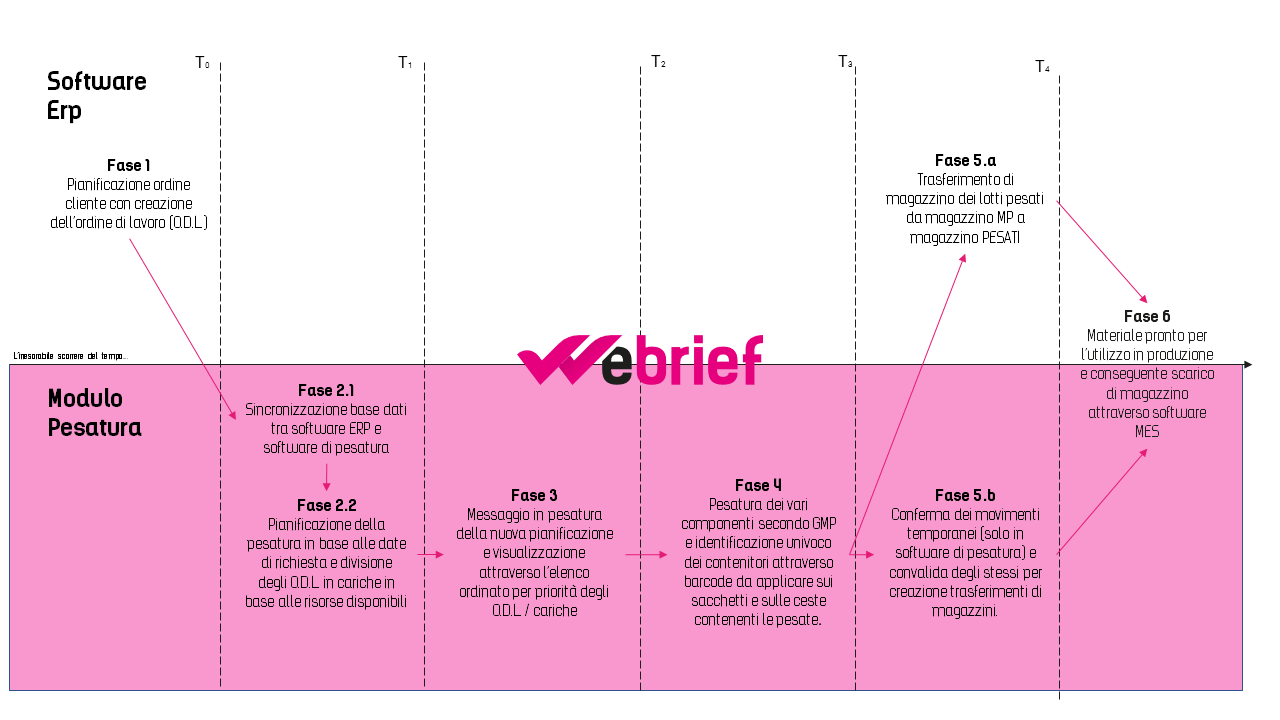
As mentioned earlier, the flow-that is, the problems and how to solve them-is really common and is summarized in the diagram opposite.

The flow is divided into timeframes (highlighted by the vertical blocks) and the two horizontal bars representing the application scope (ERP Software and Weighing Module) and shows the actions performed for proper information management.

Stage 1

Like any production, the initial startup is triggered when a product order line is entered. The order can be of various types:

  1. Finished product orders from customer
  2. Bulk order from customer
  3. Internal order order for warehouse re-integration

In each case this will have to say what we need to produce, how much we need to produce, and possibly the date by which to produce.

Stage 2

This activity is divided into two parts: the first, fully automatic while the second is semi-automatic.

Step 2.1

The weighing module, by reading and synchronizing order rows with the company ERP (integration can be done in multiple modes), will transpose changes and new productions with all necessary data.

This whole phase is an automatic procedure that can be launched independently by the system by running it at predefined time intervals.

Step 2.2

Based on the synchronization we will have to plan the production dividing the work order into its processing charges. This is a special feature of the industry that we will address in a later post. The choice may be of two types:

  1. Fully manual: the operator will choose how and how much to divide
  2. Semi-automatic: the system will propose values based on configuration parameters

The result of phase 2 will be to generate a weighing plan for the various locations by dividing, through the structure of the configured BOMs, the components to be weighed. The components may be either raw materials or semi-finished products.

The phase may be performed several times in the day according to business needs.

Stage 3

Upon confirmation of step 2, the weighing module will alert the manager who will view the weighing plan (the ODLs divided into charges) according to the priority criterion established by the company. This control station may be directly a terminal in weighing or a dedicated page on the manager's station. Always consider extrapolating the lists that a software provides in excel format because it is very convenient to process out of the system or to use as paper summaries.

Stage 4

The weighing station could have several hardware features. First, it could be a touch-screen station with a barcode reader; alternatively, it could be a handheld device with an integrated barcode reader. Of these devices there are many brands. Among the most popular are Motorola, Denso, and Zebra. Optionally, but highly recommended, integration of the signal from the scales so that the measured data (the weight) is directly handled by the system and not manually imputed by the operator. Integration of scales can be done in various ways, which we will see in a future article.

What should a weighing module display?

The information to be displayed is multiple and will require the use of multiple masks. The minimum list to be requested is as follows:

  1. ODL list to be weighed: this mask is useful if a completely paperless system is desired. As an alternative to this one could use a barcode on the ODL and, upon reading this, take the operator to the next mask.
  2. Component list: the second mask, once ODL/load to be weighed has been chosen, will display all components (in table format) with the quantities to be weighed and weighed. In this mask we will choose the component (via touchscreen or barcode) and the system will prepare for weighing.
  3. Available lot list: having to manage component lots it will be useful, once the material to be weighed has been chosen, to have a list of lots (sorted by FIFO, LIFO, FEFO, etc.) with possible locations. In this way, only valid lots will be accepted giving feedback to the operator if they make a mistake in picking (via barcode reading)

Tips for the graphical user interface

Always remember to keep the masks simple with very large, easy-to-read fonts (this is not a program used in the office but in production). Information should be visually punchy (pictures, colors, etc.) and any error signals should attract the operator's attention.

Label and weighted uniqueness

With each weighing, the system will have to print unique labels containing important information for material traceability and to ensure weighing uniqueness. Each weighing will have to be managed in the weighing module database by attaching automatic information such as:

  1. ODL and charge
  2. Weighing code (usually an autogenerated sequence number)
  3. Part number
  4. Component lot
  5. Quantity required
  6. Weighed quantity
  7. Weighing operator
  8. Date/time/minutes and seconds of weighing

These 8 data constitute the unique identification of the weighing within the entire weighing system.

Container baskets

We have always recommended that the first time an ODL/load is weighed, a label containing the basic data of the ODL to which it belongs should be printed. Such a label will thus create a virtual warehouse of the various weighed components so as to group them together and not scatter bags mistakenly to other productions. To do this you will have to allocate adequate space for both weighing and production so that the baskets can be conveniently and safely transferred. Label reading by terminal will allow the operator to know the contents of the basket at all times.

Step 5

Step 5 may change according to the needs and features of the enterprise ERP software. The simplest case is to create a stock movement (stock transfer) at each weighing for the quantity/component/batch. You will automate this transfer from the RAW MATERIALS/STOCK warehouse to the WEIGHTS WAREHOUSE.

Alternatively, instead of creating each movement at the same time as each weighing, you can create a mask within the weighing module that will list all the weighings executed and not yet "moved" in the ERP and manually launch the execution of the movement. The two solutions are still valid but have pros and cons, respectively. One tip is to have a weighing module that allows you to choose the two modes of action via configuration parameters so that you can decide at any time whether to use the automatic type or not.

Automatic transfers vs. manual transfers

Automatic transfers

  • Pro 1: stock updated in real time
  • Pro 2: Queries for lot availability are easy because everything is in real time
  • Cons 1: If the operator makes a mistake in weighing you must have a routine available that reverses the stock transfer. Usually this procedure is very complex

Manual transfers

  • Pro 1: Any weighing can be checked and possibly changed by hand
  • Cons 1: More complex batch inventory queries (must account for products weighed and not yet transferred)
  • Cons 2: Need for an operator to act as a super-vision.

Both choices are valid, so it is just a matter of being able to field test what is best for your company. That is why we recommend a system that has both choices and gives you wide margins for parameterization.

Step 6

The last phase under consideration is not so much about the weighing module but more about starting the second production phase proper. Basically, with the components weighed and identified in their own bags/baskets, we have the ability (only if we go through weighing software first) to be able to directly download through the use of barcodes the components during bulk production.

This flow is not analyzed in this post but we will describe it in a later one.

Conclusions

The weighing module is one of the essential modules for digitizing your business. Using it ensures:

  1. Effectiveness
  2. Accuracy
  3. Creating data for future analysis
  4. Traceability and traceability
  5. Error correction and real-time reporting

The module is part of a series of available software that ensures fast and fully digitized operational flows. If you are interested in learning more about all the software download from the following link our operating manual dedicated to the cosmetics industry for building a complete and functional information system. In the document we will analyze all the necessary and essential software for a cosmetic company and how to integrate them with each other.

If you would like to schedule an appointment with one of our technicians, contact us by pressing this LINK. We can talk in person about all the problems we have faced and solved in our years of working with companies in the cosmetics industry. A digitized company is an efficient and competitive company and is the only way to win in today's market.

Creating-a-new-project

Creating a new project

Ben trovati; dopo aver visto come ricercare un progetto (in questo link trovate l’articolo pubblicato precedentemente) passiamo ora ad analizzare gli elementi principali che compongono un progetto all’interno del weBRIEF. Per una descrizione generale potete far riferimento al seguente link (Progetto). Se volete approfondire la conoscenza sugli elementi del progetto continuate pure la lettura; analizzerò i singoli punti e come interagiscono all’interno del software creando flussi informativi automatici e parametrizzabili.

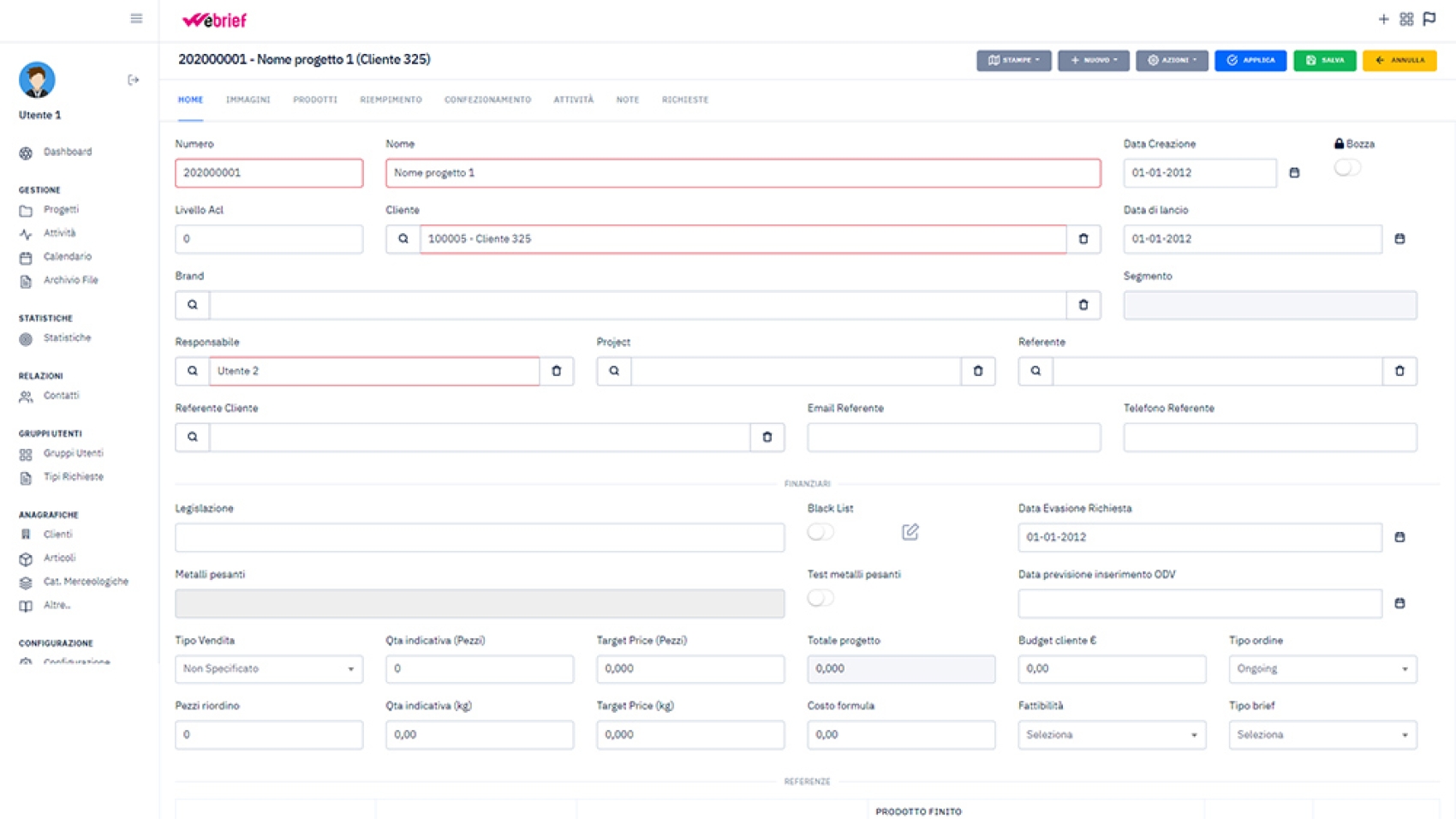
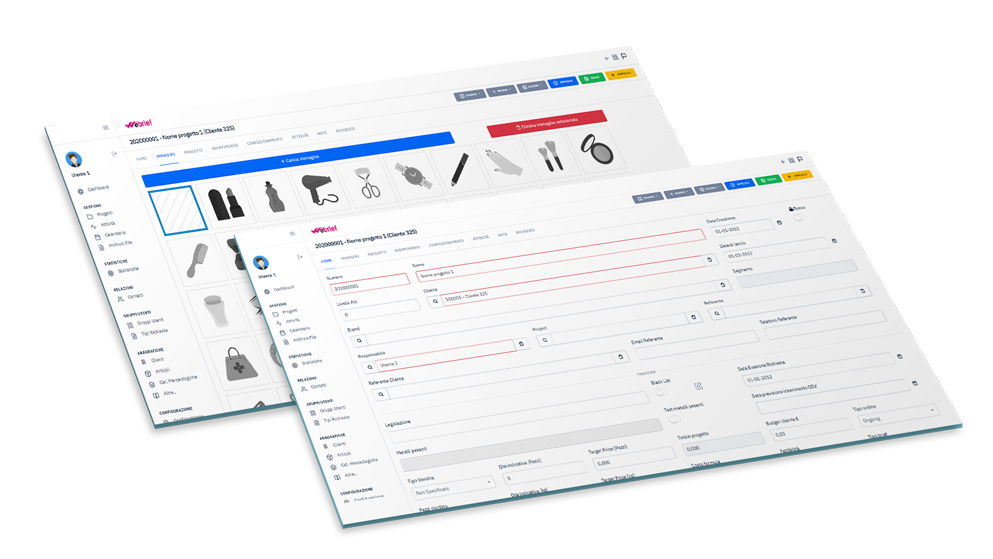
Alla creazione di un nuovo progetto la maschera visualizzata è la seguente:


NUOVO PROGETTO

Il numero viene creato in automatico ed è un progressivo che si azzera ogni anno. La descrizione, campo obbligatorio, è come voglete “titolare” il progetto e sarà uno dei campi di ricerca principali. Gli altri dati di anagrafica sono i seguenti:

  • Livello ACL (default 0 max 99)
    è il livello che l’utente deve avere (nella scheda utente di configurazione) dal quale vedere il progetto.
  • Bozza
    se il progetto è in bozza non verrà visualizzato da nessuno al di fuori degli autorizzati. Questo è per tenere progetti in uno stato temporaneo così che nessuno possa creare azioni sino al rilascio dello stesso (magari per un progetto non abbiamo tutte le informazioni necessarie).
  • Data creazione
    campo non editabile e contiene la data di creazione del progetto.
  • Data di lancio
    data previsto lancio del progetto (per una eventuale statistica).
  • Responsabile
    utente che crea il progetto e che verrà sempre avvisato di eventuali modifiche e azioni accadute sul progetto.
  • Project
    altro utente che verrà ragguagliato di tutte le azioni sul progetto ma che non è il diretto responsabile.
  • Referente cliente, email, telefono
    dati del referente del cliente. Tali dati sono auto-salvati creando così uno storico di tutti i riferimenti per i vari clienti.

Dopo i primi dati anagrafici andrete a compilare i dati finanziari (dati del tutto facoltativi) che sono:

  • Fascia di mercato
    da tabella pre-configurata; 1 valore selezionabile.
  • Legislazione
    da tabella pre-configurata, possibilità di scegliere N valori.
  • Data evasione richiesta
    data per la quale sarà necessario assolvere a tutte le richieste.
  • Tipo vendita
    da tabella pre-configurata; 1 valore selezionabile.
  • Qta indicativa (Pezzi)
    come da descrizione.
  • Target Price (Pezzi)
    come da descrizione.
  • Budget cliente
    come da descrizione.
  • Tipo ordine
    come da descrizione.

Successivamente ci sono campi fondamentali che identificano il prodotto e il progetto:

  • Categoria
    da tabella pre-configurata; 1 valore selezionabile.
  • Famiglia
    da tabella pre-configurata; 1 valore selezionabile.
  • Linea
    da tabella pre-configurata; 1 valore selezionabile.
  • Riferimento prodotto
    eventuale prodotto precedentemente creato su cui basare le specifiche tecniche.
  • Stato (Attivo/Concluso/Annullato)
  • Contrattazione (In contrattazione/Acquisito/Dormiente(Rifiutato)

Nella prima configurazione del progetto avremo anche la possibilità di specificare una immagine legata al prodotto (come si dice “un’immagine è meglio di mille parole”). Inserito il progetto attraverso il bottone APPLICA (o SALVA) verrà avvisato l’utente project (se presente) del nuovo progetto creato e gli operatori potranno iniziare a lavorare sulla nuova lavorazione (ovviamente se non in stato bozza).

Questi sono i dati principali che costituiscono il progetto. Nel prossimo articolo analizzeremo i dati aggiuntivi specifici per il settore. Come sempre siamo a vostra disposizione sia per chiarimenti sia per suggerimenti attraverso il bottone che trovate qui sotto.

Compila i dati e rimani connesso e aggiornato!

List-projects

Project List

Bentornati, continuiamo l’analisi dei contenuti del nostro software attraverso l’analisi di una pagina principale ovvero l’elenco dei progetti. Se avete perso l’articolo precedente ovvero l’analisi della nostra DASHBOARD vi rimandiamo a questo link.

I progetti sono il cuore pulsante di tutto il software. Ogni progetto è un contenitore virtuale che racchiude tutti gli scambi di informazioni che avvengono costantemente tutti i giorni all’interno della vostra azienda e con i vostri clienti. La struttura di un progetto è complessa e può variare in base alla personalizzazione richiesta.

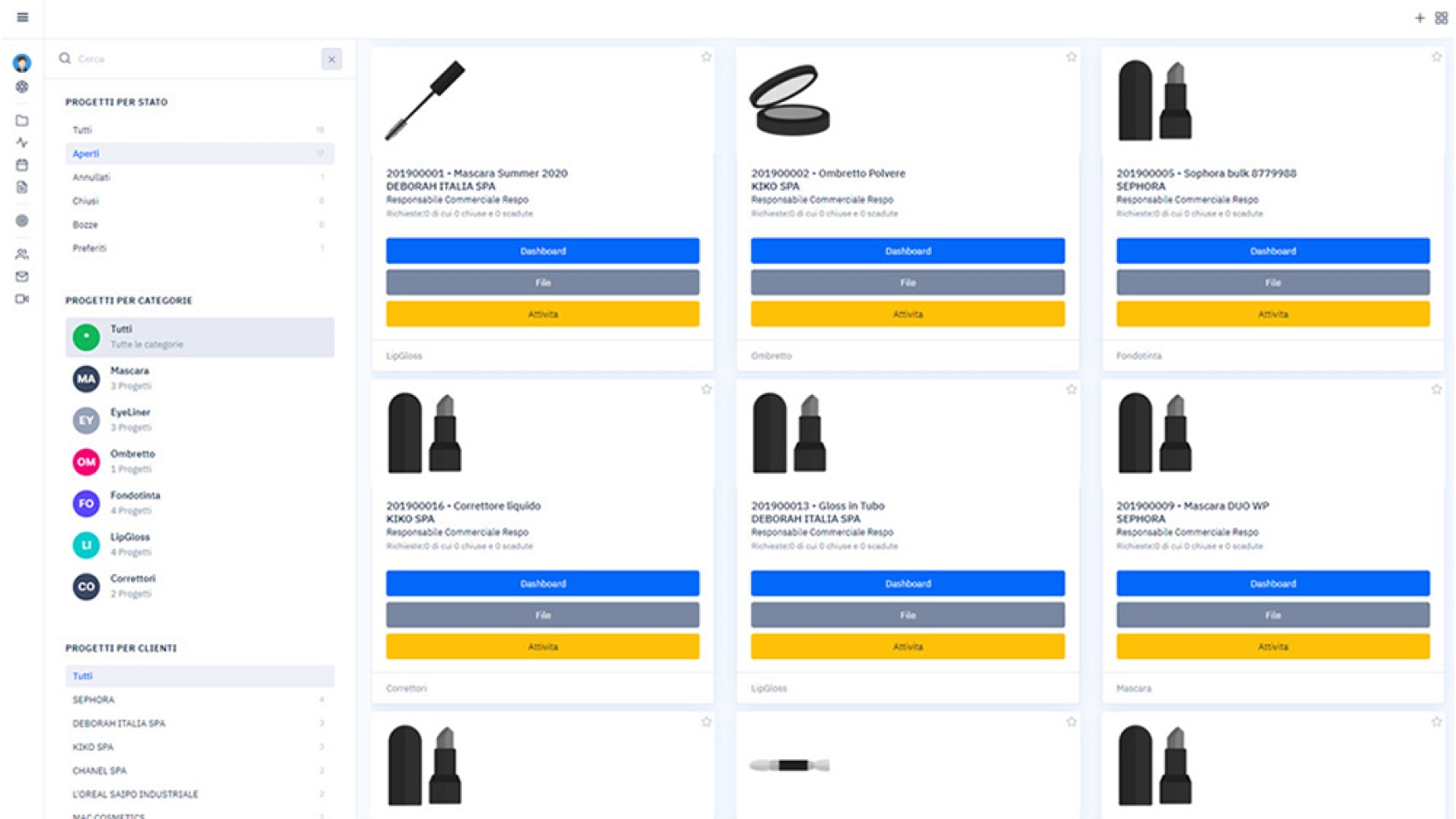
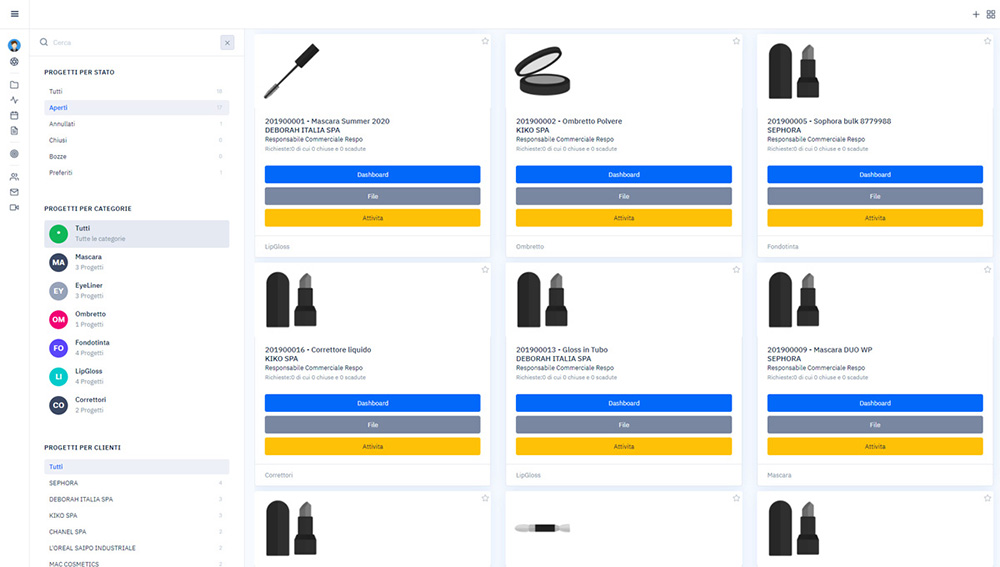
La ricerca dell’elenco è effettuabile attraverso azioni eseguibili in questa unica pagina che visualizzerete attraverso il menu PROGETTI del menù laterale.
La visualizzazione è suddivisa in 2 fasce verticali ben distinte:

  • Fascia sinistra
    contiene i campi di ricerca più importanti
  • Fascia centrale/principale
    contiene i risultati ovvero l’elenco di tutti i progetti in base ai criteri di ricerca utilizzati

I criteri di ricerca sono i seguenti:

  • Ricerca descrittiva
    se conoscete il nome del cliente, la descrizione del progetto o il numero lo potete inserire nella casella apposita per ottenere i risultati voluti. Tale ricerca lavora su questi 3 campi e analizza tutto il database per ottenere i risultati migliori.
  • Progetti per stato
    questo criterio è sempre applicati e viene visualizzato il selezionato attraverso una fascia grigia di selezione. La sua valorizzazione è sempre applicata alla ricerca e permette di filtrare sempre i risultati in base al loro stato. La ricerca di default (quella proposta in automaticao dal sistema) è sempre relativa allo stato APERTI.
  • Progetti per categorie
    Elenco di tutte le categorie che gestiamo all’interno del software.
  • Progetti per clienti
    Visualizzazione di tutti i progetti divisi per clienti.

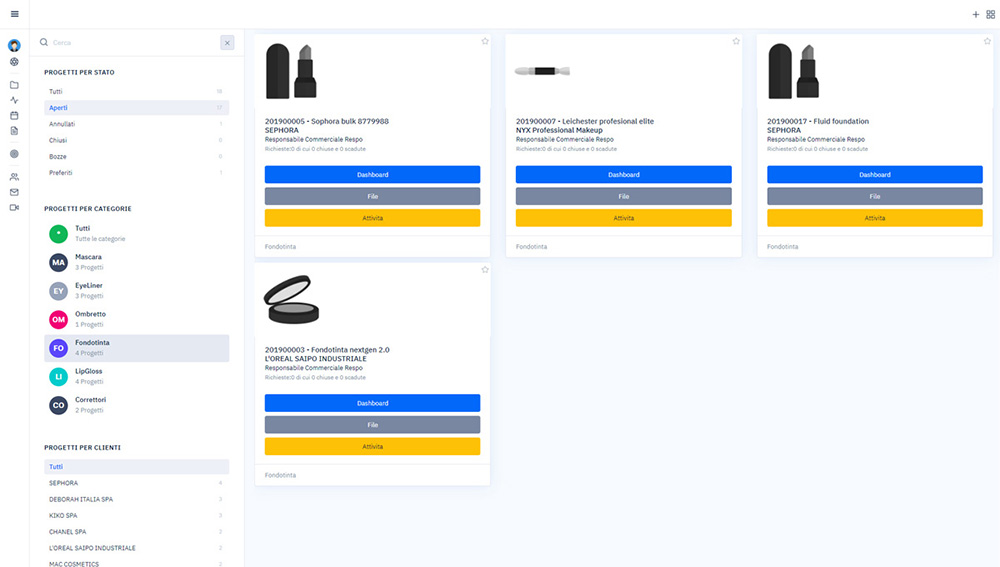
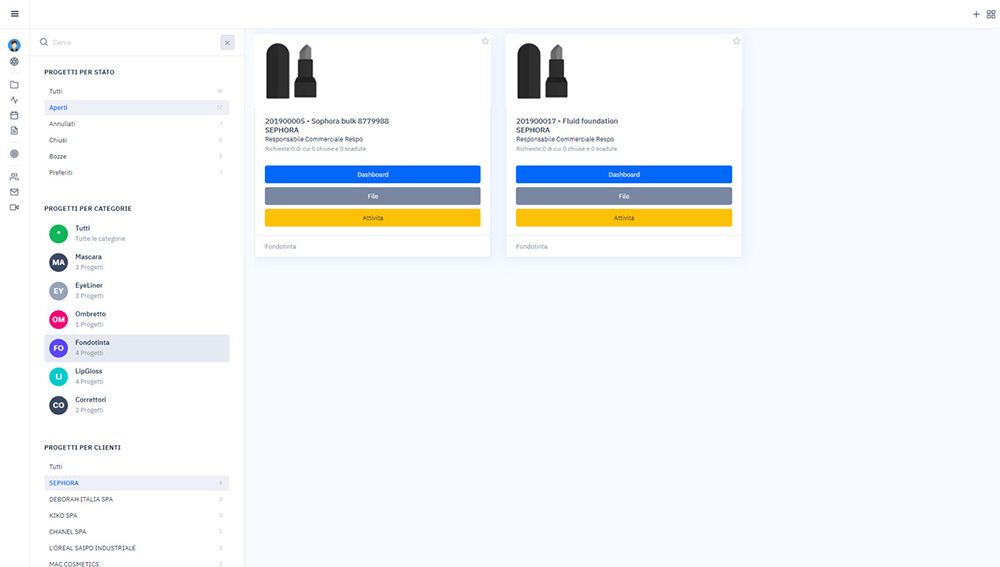
Ogni valore è direttamente selezionabile per ottenere una ricerca più puntuale. Ad esempio vediamo una fase di selezione:

Fase 0: Tutti i progetti aperti

Fase 1: Progetti aperti di tipo FONDOTINTA

Fase 2: Progetti aperti di tipo FONDOTINTA del cliente SEPHORA.

Questa visualizzazione è nata per potervi semplificare la ricerca in base a filtri incrementali di facile applicazione.

Risultati: i risultati ottenuti saranno blocchi contente informazioni principali quali:

  • Numero e descrizione progetto
  • Cliente
  • Nome del responsabile aziendale
  • Numero richieste totali e chiuse
  • Categoria prodotto

Da questo blocco potrete aprire le tre maschere di gestioen principale che sono:

  • Dashboard
    per visionare tutto lo stato del progetto.
  • File
    elenco di tutti i file passati dal progetto.
  • Attività
    elenco di attività che dovrete eseguire sul progetto.

Questo è solo una piccola introduzione all’utilizzo di questa funzionalità base del weBRIEF; siamo sempre ricettivi qualora aveste suggerimenti o richieste che servano a migliorare il vostro lavoro e il nostro prodotto. Per qualsiasi contatto e informazione non esitate a contattarci attraverso il bottone che trovate qui sotto.

Compila i dati per restare sempre aggiornato!

dashboard

Dashboard


Benvenuti nel primo di una serie di articoli dedicati all’utilizzo del weBRIEF. Ovviamente tutte le nostre considerazioni vanno adeguate alla vostra realtà. Non abbiamo nessuna sfera magica che possa risolvere tutti i problemi; il nostro scopo è semplicemente quello di portarvi alla luce casi pratici o esempi applicativi applicati al nostro software e che speriamo vi aiutino a ragionare circa eventuali problemi emersi nel vostro lavoro.

  • Barra superioriore
  • Barra di navigazione laterale (quella a destra contente i menù)
  • Parte centrale: elenco principale contenente i dati delle differenti pagine

Barra superiore

Nella barra superiore noterete una o più icone (in base al tipo di accesso che avete): la prima è un bottone con il simbolo + che vi permetterà, qualora foste autorizzati, di creare un nuovo progetto.

NUOVO PROGETTO

La seconda icona vi porterà, da qualsiasi punto voi siate, alla vostra dashboard.

TORNA ALLA DASHBOARD

Questo è il cassico menù dove ogni utente potrà navigare all’interno di tutto il prodotto e, premendo l’immagine sopra il vostro nome, potrete personalizzare tutti i parametri legato al vostro utente.

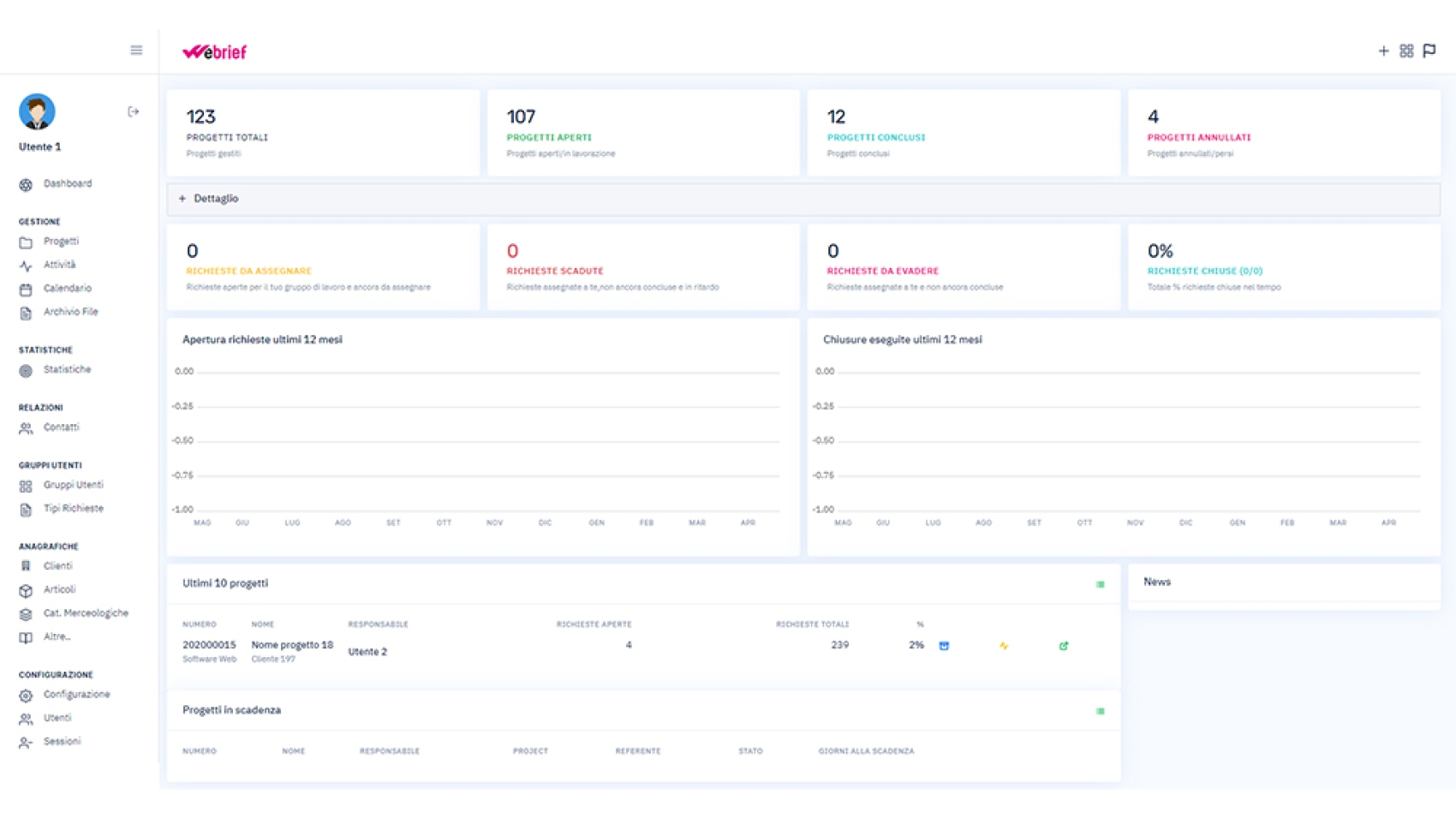
Dashboard

Veniamo dunque alla pagina principale. In questa visualizzazione potete leggere tutti i macro-dati riguardanti il vostro utente. Dali dati sono i seguenti:

Fascia 1: Progetti

  • PROGETTI TOTALI
    numero progetti gestiti all’interno di tutto il software.
  • PROGETTI APERTI
    numero progetti in stato aperto.
  • PROGETTI CONCLUSI
    numero progetti in stato chiuso.
  • PROGETTI ANNULLATI
    numero progetti in stato annullato (perchè persi o annullati).

Tutti questi blocchi sono direttamente selezionabili e vi indirizzeranno all’elenco progetti (con selezione attiva in base a quello scelto).

Fascia 2: Richieste

  • RICHIESTE DA ASSEGNARE
    se siete responsabile vedrete tutte quelle da assegnare.
  • RICHIESTE SCADUTE
    tutte le richieste in vostro carico non ancora chiuse e scadute (in base a parametri che vedremo in un prossimo articolo).
  • RICHIESTE DA EVADERE
    tutte le richieste non chiuse ma ancora non scadute.
  • RICHIESTE CHIUSE
    percentuale e numero di richieste chiuse da voi.

Anche questi blocchi sono selezionabili e vi indirizzeranno nella visualizzazione delle attività.

Fascia 3: Grafici richieste

In questa parte di monitor visualizzerete, per i 12 mesi precedenti ad oggi, due tipologie di informazioni:

  • Aperture
    numero di richieste, divise per mese, che un vostro collega vi ha aperto o che il vostro responsabile vi ha assegnato.
  • Chiusure
    numero di richieste che avete chiuso, divise per mese.

Fascia 4: Ultimi 10 progetti

In questa fascia vedrete tutt gli ultimi progetti ordinati per data di creazione decrescente ai quali avete contribuito o che per i quali è richiesto il vostro contributo. Da questo elenco visualizzerete:

  • Dati di base come codice e descrizione progetto
  • Il responsabile del progetto (persona all’interno dell’azienda che ha la responsabilità della gestione del progetto)
  • Numero di richieste aperte e totali con la percentual
  • I bottoni dedicati all’apertura dell’anagrafica, della dashboard e dei file del progetto.

Questa visualizzazione, altamente personalizzabile, è calcolata in tempo reale in base alle attività eseguite da tutti gli utenti per tutti i progetti. Racchiude macro-informazioni che servono al singolo operatore per capire come sta procedendo l’attività lavorativa.

Ci vediamo presto con un altro articolo; se nel frattempo volete più informazioni contattateci premendo il bottone sotto, siamo a vostra completa disposizione.

Compila i dati per restare sempre aggiornato!